Make your everyday pointer setup easy to repeat
Choose pointer behaviour around familiar tasks, record the settings, and keep physical placement consistent without turning preference into a health claim.
Define the work the pointer must support
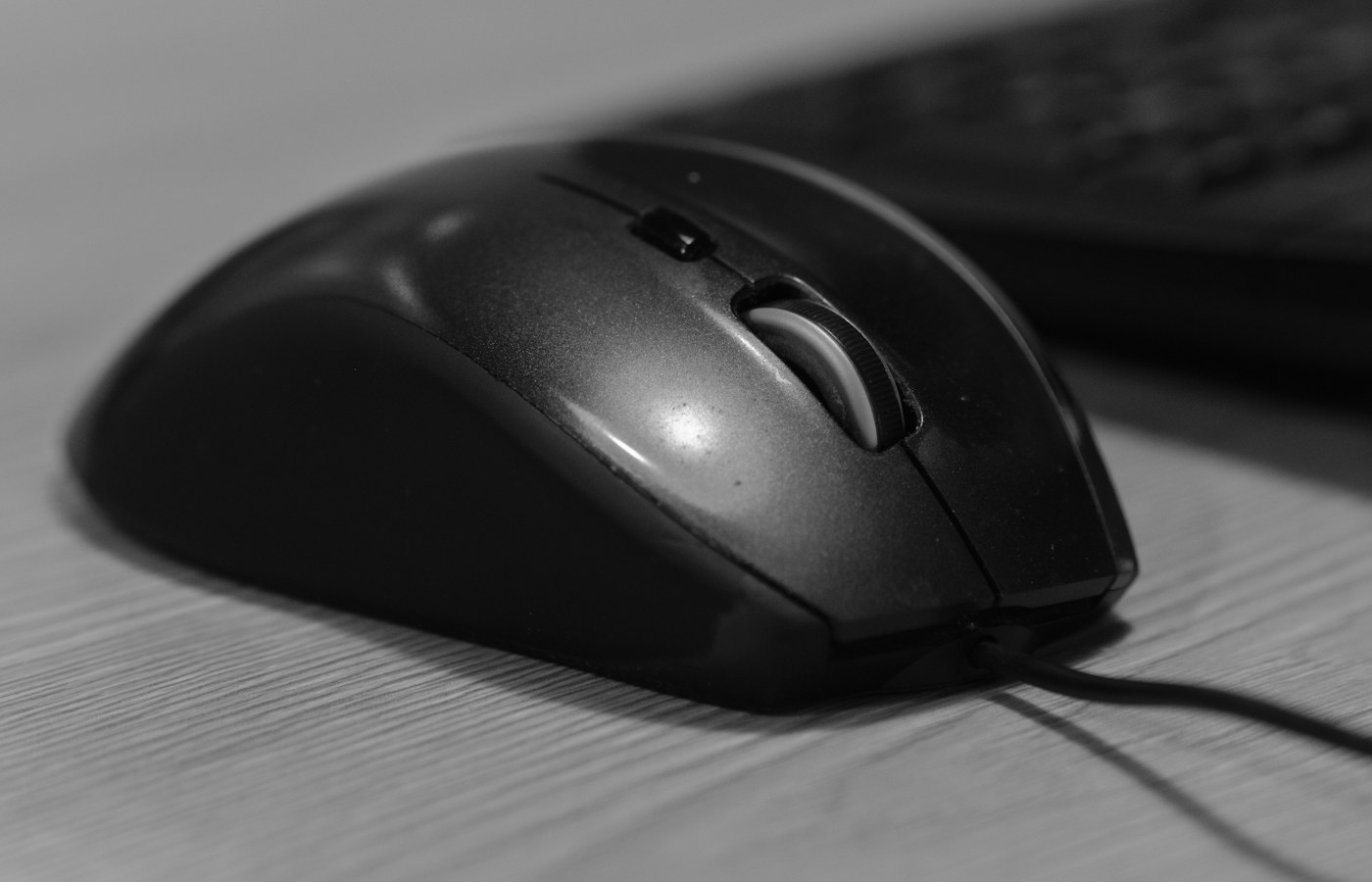
A useful pointer setup lets you carry out ordinary actions predictably: select text, reach a menu, drag an object, and scroll through a document. Begin with those tasks rather than a supposedly ideal sensitivity number. A person editing large photographs may want different behaviour from someone moving between a spreadsheet and a browser. Your display arrangement also matters because a pointer must cover the desktop you actually use. Write down two or three recurring tasks that currently feel awkward, then choose a familiar document or project in which you can try each task without risking important changes.
This is an exercise in repeatable preferences and practical placement, not a medical assessment. No single pointer speed or device position can be claimed here to prevent or treat a health problem. If a setup causes discomfort, stop the trial instead of treating persistence as evidence that it will eventually suit you. Use relevant professional advice for individual health concerns. Within that boundary, you can still make thoughtful choices about available space, visible feedback, and controls that reduce unnecessary confusion. The goal is to remember what works for your tasks and recreate it when the computer changes.
Record the starting conditions
Before changing settings, note the pointer device, the connected displays, the operating system, and any device software that influences pointer behaviour. Take a screenshot of the relevant settings if it contains no private information. Record whether the device has a physical sensitivity button or several stored profiles. An accidental press can otherwise make a familiar setup seem inconsistent even though the operating system's slider has not moved. You do not need a laboratory description of every component. Capture the details that could plausibly explain why the same hand movement produces a different result the next day.
Keep the test surface and seating arrangement ordinary. A device used directly on a reflective desk may behave differently when moved onto a suitable surface, and a crowded workspace can force you to reposition it repeatedly. Clear enough room for the movements your tasks require without balancing equipment on an unstable edge. Place frequently used items so they do not push the pointer device into a temporary corner. Record a simple reference such as beside the keyboard with clear space to the right. Precise measurements are optional when a photograph or a repeatable landmark provides enough guidance.
Change one control at a time
Pointer speed, scroll behaviour, button assignments, and visibility settings affect different parts of the experience. Microsoft documents mouse settings for button functions, pointer visibility, and scrolling, but the exact controls available depend on the system and device. Use the supported settings for your environment and consult the device's own documentation for additional controls. Begin with the setting most directly related to your problem. If reaching a distant menu requires repeated repositioning, investigate movement behaviour. If you repeatedly lose the cursor on a busy page, visibility may deserve attention before speed.
Make a small change, repeat the familiar task, and write a brief observation. Can you reach the destination without overshooting, or is small selection now harder? Do not change speed, acceleration related behaviour, and application zoom together, because their effects become difficult to separate. Keep the original setting available so you can return to it. A slider position is not a universal physical standard: different devices and environments may interpret movement differently. Treat the number as a setting to reproduce on this setup, not a score that should be copied to every computer in the household.
Try both large travel and small selection
A setup can feel fast when moving across a desktop and imprecise when selecting a small handle. Include both kinds of action in the trial. Move from one common panel to another, then select a short phrase or adjust an object in a disposable copy of a familiar document. Use normal application zoom rather than an extreme magnification that hides ordinary difficulties. Notice whether you frequently lift and reposition the device, miss a target, or correct the pointer several times. These observations can guide a preference without pretending to measure a universal standard of performance.
Avoid racing through the exercise. A stopwatch can encourage a different movement style from the one you use during real work, and a single timed attempt says little about learning or consistency. Instead, compare whether each action feels controllable and whether the result is repeatable over a few ordinary attempts. A slightly slower setting may be preferable if it makes fine work more predictable; another person may reasonably choose differently. If one application remains awkward while others behave well, inspect its own zoom or interaction settings before changing the entire desktop to compensate for a local problem.
Make scrolling and clicking deliberate
Scrolling deserves its own check because it can remain frustrating after movement feels right. Open a document similar to what you normally read and try moving a short distance, following a long section, and returning to a heading. Inspect the supported scrolling settings if each wheel movement jumps farther than expected or if the direction conflicts with your established preference. Some applications implement their own behaviour, so compare a second familiar application before drawing conclusions. Do not assume that making pointer movement slower also makes document scrolling slower; they are distinct controls in many environments.
Test button assignments with harmless content. If you swap primary buttons or add a shortcut to an extra button, confirm the action in more than one application and note any exceptions. Avoid assigning a destructive action where a casual grip adjustment could trigger it unexpectedly. An undo command may be convenient, but even that deserves a trial in your actual software. Keep a short map of any nonstandard assignments. A configuration that relies on several hidden gestures can be efficient for its owner while being confusing on a shared computer or after a long break from the device.
Keep the pointer visible where you work
A cursor that disappears into a photograph or a large spreadsheet can make a reasonable movement setting feel unreliable. Explore supported size and colour options using representative backgrounds. A pointer that is easy to find on a white page may blend into a dark image, so test both if your work includes them. Choose a visible result without covering so much of the target that precise selection becomes difficult. Accessibility settings can be useful preference tools; you do not need to reserve them for a particular identity or assume that choosing them makes a medical statement.
If you use several displays, check the transition between them. The operating system's display arrangement should reflect their practical relationship closely enough that the pointer crosses where you expect. A mismatch can make it appear to strike an invisible wall until moved to another height. Record the arrangement alongside the pointer settings so a restored configuration includes both. This is different from changing screen resolution merely to make the pointer travel faster. Preserve a readable display setup and adjust the interaction controls deliberately, checking the whole working arrangement rather than treating the pointer device as an isolated object.
Give a promising setup ordinary work time
After the brief trial, use the promising configuration during a normal session and note only meaningful interruptions. A newly changed setting can feel unfamiliar without being unsuitable, but unfamiliarity is not a reason to ignore persistent difficulty. Return to the original configuration if the change makes common tasks less controllable. You can compare the two on another ordinary day rather than repeatedly adjusting a slider until every movement receives attention. The best setup should let your focus return to the document, image, or conversation instead of keeping you occupied with the mechanics of pointing.
On a shared computer, keep individual preferences in supported user profiles where possible and tell other users about physical buttons that change device behaviour. A device with an unnoticed profile switch can undo careful software settings. If a configuration cannot be separated by account, agree on a simple visible default and keep personal changes easy to reverse. Do not interpret another person's preference as evidence that yours is wrong. Different tasks and habits can justify different choices, while a shared workspace still benefits from predictable starting conditions and a clear way to restore them.
Save a small restoration recipe
Write a short note covering physical placement, device profile, movement setting, scrolling preference, button changes, and pointer visibility. Include screenshots where they are clearer than prose, with the date and relevant system context. Avoid describing a slider only as roughly halfway if you can record a displayed value or capture its position. Keep the note with other personal setup information so that replacing a computer or reinstalling device software does not require repeating every experiment from memory. The recipe should be short enough that you will actually consult it.
Review the setup when the device, display arrangement, or main work changes, rather than on an arbitrary schedule that invites endless adjustment. A laptop used alone on a small desk and the same laptop connected to several monitors may need different repeatable preferences. Save separate recipes only if you genuinely switch between those situations. What you have established is a practical arrangement for specific tasks under known conditions. Its value is that you can recognise it, reproduce it, and revise it thoughtfully, without presenting a personal preference as a universal ergonomic rule or a promise about health.
Further reading
Questions or a correction? Contact Tian Xin Kai at [email protected].
General educational guidance. Features vary; check your device documentation before changing settings.