Make phone rotation predictable across reading and watching
Choose orientation around the task, learn the lock behaviour of your apps and keep a simple way back when the screen turns unexpectedly.
An unexpected turn is a small interruption
A phone can rotate just as you settle into an article, turn a message thread sideways while you reach for something or refuse to show a video the way you expect. Each event is small, but repeated interruptions can make the device feel less predictable. The solution begins with the task rather than a permanent rule that portrait or landscape is always better. Reading a long passage, checking a table and watching a wide video place different demands on the same screen.
Choose a few activities you perform regularly and observe where rotation helps or interrupts them. You might prefer a stable portrait view for messages, a wider view for a particular document and an application-managed full-screen view for video. Write down the situations that cause confusion. A clear description such as screen turns while reading in bed is more actionable than a general impression that the phone's rotation is broken. It also helps you avoid changing unrelated display settings in search of a solution.
Separate the device from the application
The operating system and the active application both influence what appears on screen. Some applications support several orientations, some are designed around one and some use their own full-screen controls for particular content. A rotation lock can interact with those choices differently across devices and software versions. Consult the current guidance for your phone and app before assuming that a setting must force every screen into the same orientation.
Test with a harmless, familiar example. Open a simple page or image and compare its behaviour with the application that causes difficulty. If one responds and the other does not, you have learned something about the scope of the problem. Do not reset the entire phone merely because one app keeps a fixed layout. Check the application's documented controls and any relevant updates first. A predictable limitation can be easier to work around than a broad system change that affects several other activities you already find comfortable.
Learn the lock and its visible indicator
Find the documented orientation-lock control for your device and identify how its current state is shown. Practise changing it and returning to your preferred arrangement while using non-sensitive content. The goal is to recognise the state at a glance rather than repeatedly tilting the phone to discover what will happen. If you are helping another person, let them perform the action and explain what they see instead of changing the setting quickly and handing the phone back.
Keep the procedure simple. A short reminder can identify the control and the visible sign that it is active, without recording every gesture in a long manual. Avoid relying on an unfamiliar shortcut that you cannot explain or reverse. If an accessibility feature is involved, read its official guidance and practise the exit action as well. The most useful control is one you can reach deliberately and recover from when activated by mistake. Convenience should reduce uncertainty rather than introduce another hidden state to remember.
Read a real passage in each orientation
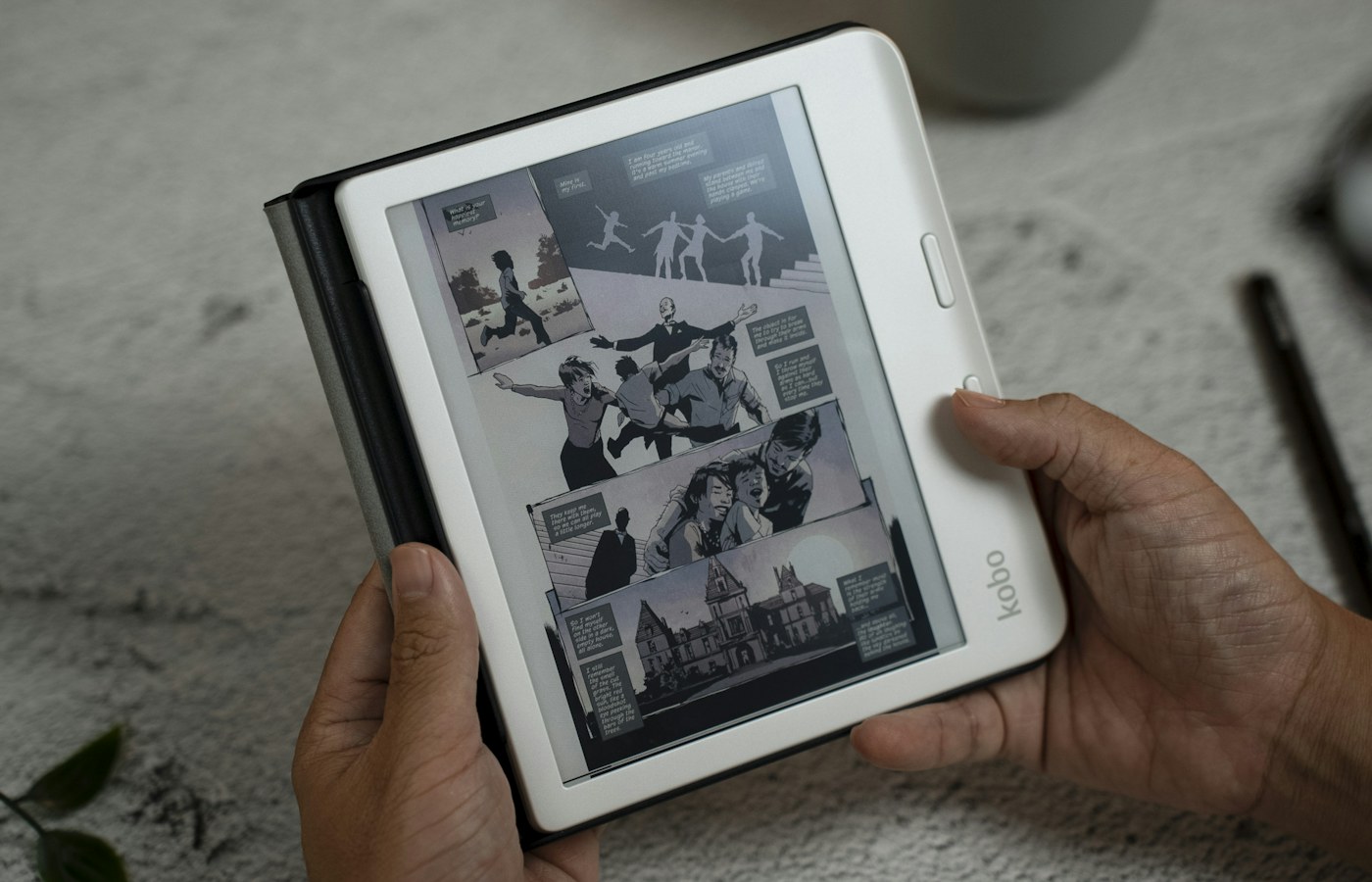
For long-form reading, compare the same passage in portrait and landscape. Notice line length, the amount of context visible and how much scrolling is required. A wider view can fit more characters per line but show fewer lines at once. That trade-off may help one kind of document and hinder another. Judge the result by whether you can follow the argument and return to the right place, not by how many words the screen can display in a static image.
Include the browser controls and any on-screen keyboard in the comparison. A view that works for reading alone may become cramped when you search within the page or add a note. Use the supported reading or display controls of your application where they help. If a document is fixed-layout, orientation may be only part of the answer; a more accessible legitimate version can be easier to use than repeatedly zooming and panning. Keep private documents in trusted tools rather than sending them to unfamiliar converters for a layout experiment.
Watch video using the app's intended controls
A video's shape and the phone's shape do not always match. Wide content, vertical clips and square material can all occupy the same display differently. Use the application's documented full-screen and fitting controls, then check whether a chosen option crops the picture or preserves the whole frame. Filling every part of the screen is not automatically the best result if it removes captions, gestures or other details that matter to the video.
Test the behaviour with a familiar clip so you know what belongs near the edges. Check how you return to the surrounding page or playlist, and whether the phone resumes your usual orientation afterwards. Do not assume a third-party player will behave exactly like the built-in one. If the controls are confusing, choose a stable arrangement and learn it before a journey or presentation. A predictable way to start, pause and exit matters more than the appearance of one impressive full-screen screenshot.
Think about support and surroundings
Where the phone is placed affects how useful each orientation feels. A stable stand can make a longer reading or viewing session easier to manage, provided it is suitable for the device and does not block ventilation, connectors or necessary controls. Keep the setup away from edges, water and heat. Do not improvise an unstable support simply because it produces the viewing angle you want. A small change in placement is often more useful than repeatedly changing software settings.
For a recipe or instruction page, position the phone so you can consult it without touching the screen unnecessarily, while keeping it outside any hazardous working area. Choose the orientation that keeps the relevant step readable. Avoid handling the phone while driving or performing tasks that require full attention. Orientation settings are a convenience feature, not a reason to divide attention in an unsafe situation. Plan the viewing arrangement before beginning the activity, especially when your hands will be occupied or the environment makes a dropped device more likely.
Check forms, tables and split information
Some tasks benefit from width because their information is arranged across columns. Others become harder when the keyboard leaves little vertical room. Try a small, harmless example rather than entering important data during the experiment. Check that field labels remain visible, the current selection is clear and the final action can be reached. A layout that looks attractive before typing may reveal its limitation as soon as the keyboard appears.
For a wide table, determine whether rotation actually improves understanding or merely makes the text smaller. A supported desktop view, an accessible export or a different device may be more appropriate for a complicated task. You do not need to force every workflow onto the phone. Recognising the limits of the small screen can save time and reduce mistakes. Keep the phone's role clear: quick reference, simple entry or sustained analysis are different tasks, even when they involve the same file.
Make shared use explicit
When passing a phone to someone to show a photograph, map or short video, explain any setting that will affect what they see. A locked orientation can be helpful for keeping a view stable, but it can also confuse someone who expects the device to turn. Avoid asking them to discover the configuration while handling private material. Open the intended item yourself, check that unrelated notifications or content will not be exposed and offer a simple explanation of how to view it.
After shared use, return to your usual arrangement and confirm it with a familiar screen. If several household members use the same device, agree on a default and a straightforward way to change it. Do not assume that the most technically confident person's preference should govern everyone else. A small printed or digital reminder can help if a setting repeatedly causes confusion. Keep the explanation focused on visible controls and the desired outcome rather than on device jargon that the reader does not need to complete the task.
Investigate a persistent problem narrowly
If an application behaves unexpectedly after you understand the lock state, note the app, content type, device orientation and action that triggers it. Check whether the issue occurs with another harmless example in the same app. This information is useful when consulting official support or reporting a problem. Avoid adding several unrelated adjustments at once, because an improvement would then be difficult to attribute to a particular change.
Follow the manufacturer's supported troubleshooting steps and keep important work saved before restarting an application or device. Do not remove and reinstall an app containing unsynchronised projects without checking its export and recovery options. Rotation trouble rarely justifies risking unrelated data. If the behaviour is an application limitation rather than a fault, choose a workable route and document it briefly. A reliable workaround can be enough, particularly when the task is occasional and another supported viewing method is readily available.
Keep the default boring and the exceptions clear
Choose an everyday default that suits the tasks you perform most often. Then learn the few exceptions that provide a real benefit, such as a particular full-screen video view or a document that reads better horizontally. You do not need an automatic rule for every application. A small number of deliberate choices can be easier to maintain than a complicated set of modes whose behaviour changes after an update.
Review the arrangement when you change phones or adopt an application that becomes central to your day. Repeat the familiar passage, clip and simple form rather than judging the new device from its demonstration screens. The goal is a phone that does what you expect when you turn it, keep it still or hand it to someone else. Orientation becomes less distracting once its state is visible, its exceptions are understood and the decision is tied to the task rather than to a universal preference for one screen shape.
Questions or a correction? Contact Tian Xin Kai at [email protected].
General educational guidance. Features vary; check your device documentation before changing settings.